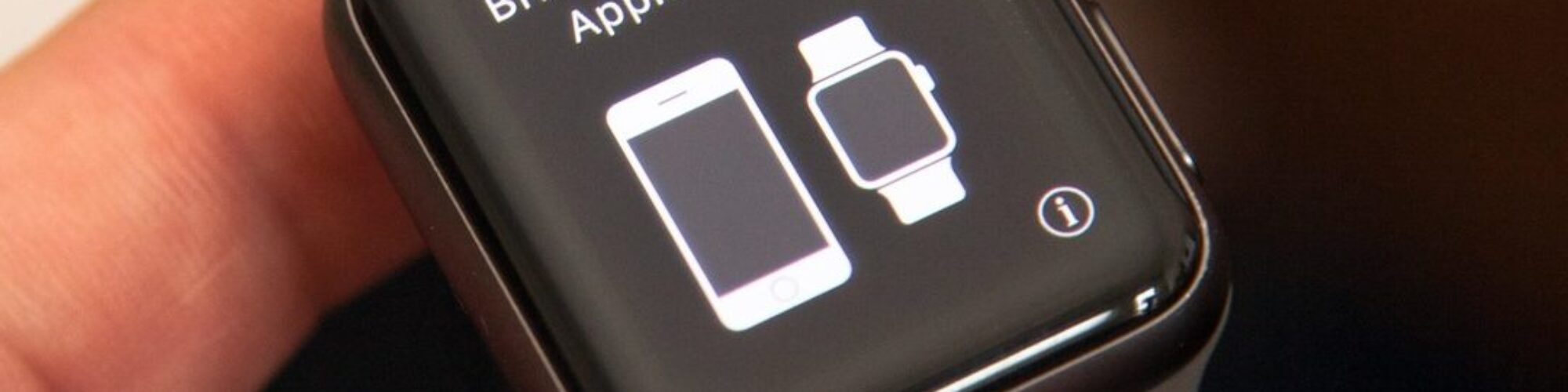
The Apple Watch is a remarkable piece of technology that allows you to stay connected, track your fitness, and access a wide range of apps right from your wrist. However, like any electronic device, it may encounter connectivity issues from time to time.
1. Check Bluetooth Connectivity
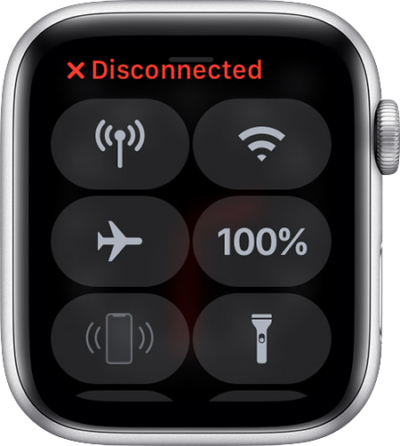
The most common reason for Apple Watch connection problems is a lost Bluetooth connection between your watch and iPhone. To resolve this issue:
- Open the Control Center on your iPhone by swiping down from the upper right corner of the screen.
- Ensure Bluetooth is enabled; if not, tap the Bluetooth icon to turn it on.
- Swipe up on your Apple Watch to access the Control Center.
- Tap the Bluetooth icon to enable it.
This simple step often re-establishes the connection, solving the problem.
You May Also Like to Read:
5 Impressive Apple Watch Features You Need To Try
2. Restart Your Apple Watch
Sometimes, a quick restart can fix connection issues. Here’s how to restart your Apple Watch:
- Press and hold the side button until you see the “Power Off” slider.
- Slide it to turn off your watch.
- Press and hold the side button again until you see the Apple logo.
This process can clear any minor glitches causing connectivity problems.
3. Restart Your iPhone
Restarting your iPhone can also help. Depending on your iPhone model:
- For iPhones with Face ID, press and hold the side button and either volume button until the “Power Off” slider appears.
- For iPhones with a home button, press and hold the side (or top) button until the slider appears.
After restarting your iPhone, attempt to reconnect your Apple Watch.
4. Forget and Reconnect Your Apple Watch
Sometimes, re-pairing your devices can resolve issues:
- On your iPhone, go to “Settings” > “Bluetooth.”
- Find your Apple Watch in the list and tap the “i” icon next to it.
- Select “Forget This Device.”
- Confirm your choice.
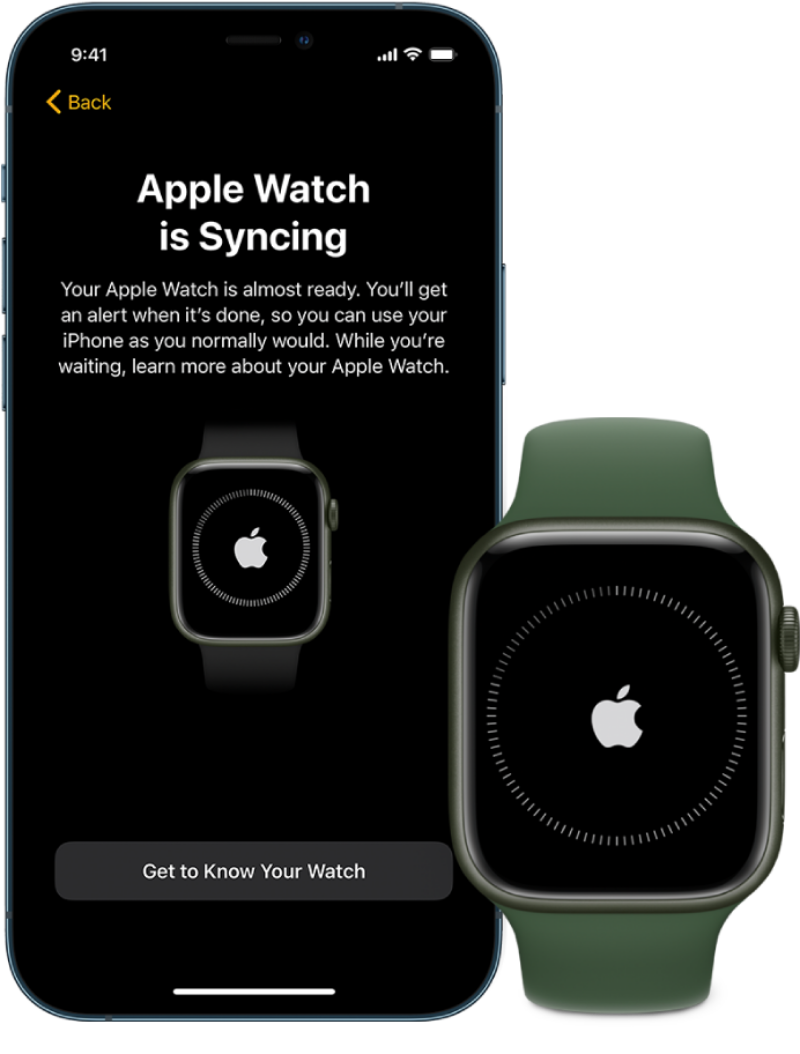
Now, re-pair Apple Watch with your iPhone by opening the Watch app and following the setup instructions.
5. Update Software
Software updates often include bug fixes and improvements. To update your devices:
- On your iPhone, navigate to “Settings” > “General” > “Software Update” and install any available updates.
- On your Apple Watch, connect it to Wi-Fi, open the Watch app on your iPhone, and navigate to “General” > “Software Update.”
Keeping your devices up to date can resolve compatibility issues causing connectivity problems.
Still Not Connecting?
There might be something wrong on a hardware level. Book online or visit our Parnell or Ponsonby stores to get a professional opinion from our experienced Apple Watch specialists.
Don’t let a disconnected Apple Watch disrupt your day. By following these troubleshooting steps, you can quickly diagnose and resolve connection issues. Whether it’s a Bluetooth hiccup or a software glitch, these solutions will help you stay seamlessly connected and enjoy all the features your Apple Watch has to offer. Say goodbye to connection woes and hello to uninterrupted smartwatch functionality!