Remember to back up important files before deleting or making any significant changes to your storage. Regularly maintaining your storage space will help keep your Mac running smoothly and efficiently.
1. Use the Storage Management Tool
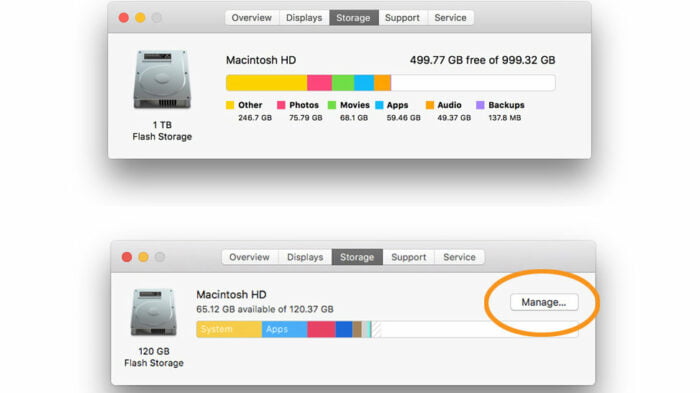
MacOS includes a built-in Storage Management tool that helps you identify and manage storage-consuming files. Go to the Apple menu > About This Mac > Storage > Manage. From there, you can review recommendations and take actions like optimizing storage, emptying the trash, and reducing clutter.
2. Utilise iCloud and Optimised Storage
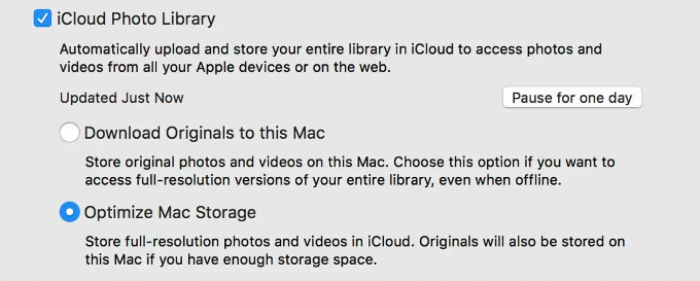
Take advantage of iCloud to store your files, photos, and documents. iCloud Drive and iCloud Photos allow you to access your content across devices while freeing up local storage space. You can also enable the Optimised Storage feature (System Preferences > Apple ID > iCloud > Manage) to automatically store older files in iCloud, keeping your local storage more manageable.
3. Clear Downloads and Temporary Files
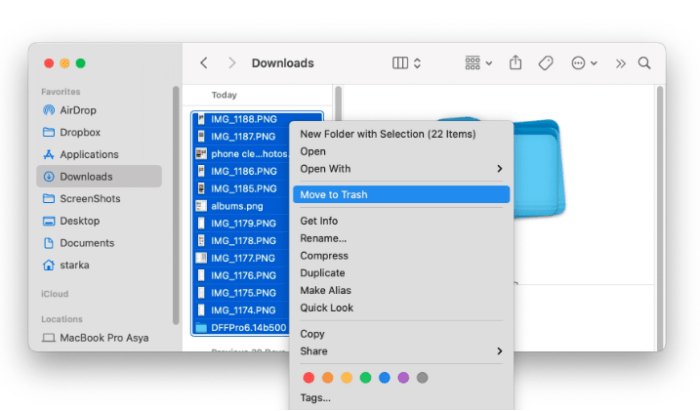
The Downloads folder can accumulate various files over time. Sort through the folder and delete files that you no longer need. Additionally, clear temporary files by using the “Go” menu in Finder and selecting “Go to Folder.” Then enter “~/Library/Caches” and delete the files and folders within.
4. Empty the Trash
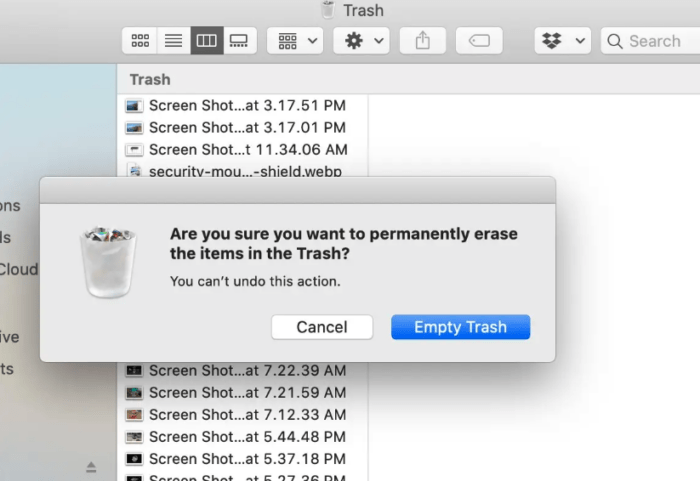
Make sure to regularly empty the Trash to permanently delete files from your Mac. Remember that files in the Trash still take up storage space until they are removed completely.
5. Delete Unnecessary Files and Applications
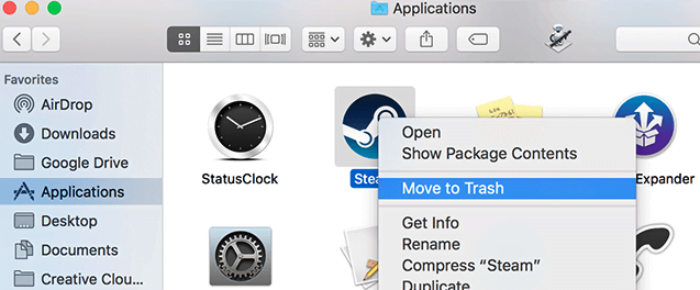
Manually review your files and delete any unnecessary or duplicate items. Look for large files, such as videos or old documents, that you no longer need. Additionally, uninstall unused applications to free up space. You can do this by dragging them from the Applications folder to the Trash or using a third-party uninstaller tool.
6. Clear Browser Caches and History
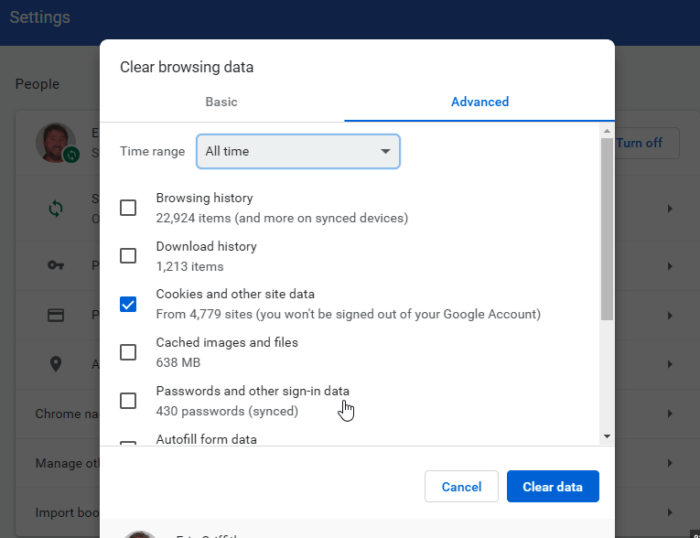
Web browsers often accumulate cached files and browsing history, which can take up significant storage space. Clear the cache and browsing history in your preferred web browser’s settings to free up storage.