iPhone 16 Pro battery drainage
A new issue has come to light, affecting multiple new iPhone 16 Pro and 16 Pro Max users. Notably, users are experiencing iphone 16 pro battery draiange problem that offers them significantly less adequate battery life compared to the initial devices at launch. The issue seems to have plagued newer iPhone 16 Pro models, particularly when the device goes into standby mode.
Some users have reported that they have to put their iPhones to charge after a light session of texting, social media scrolling and web browsing. iPhone 16 Pro and 16 Pro Max users have highlighted this issue on multiple forums and appears to be exclusive to the Pro models.
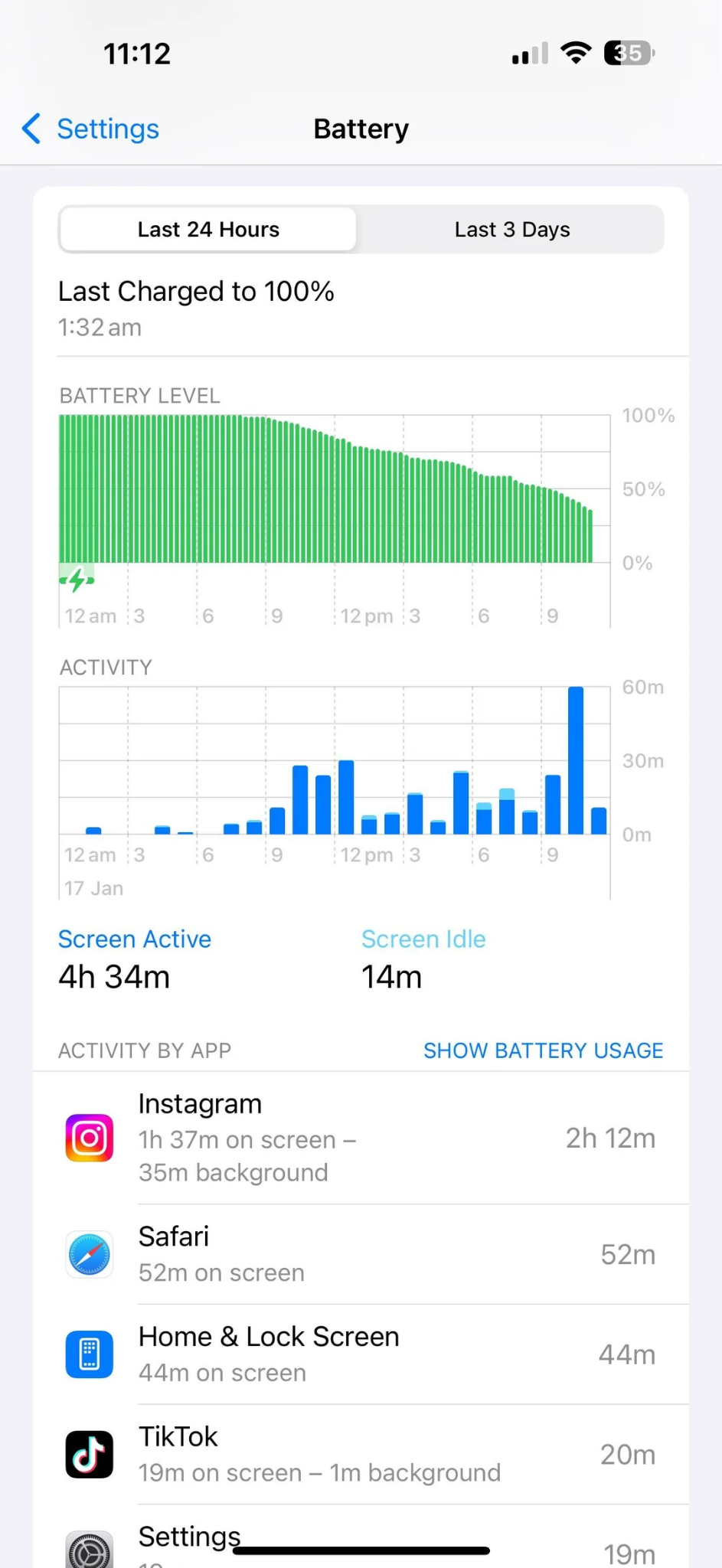
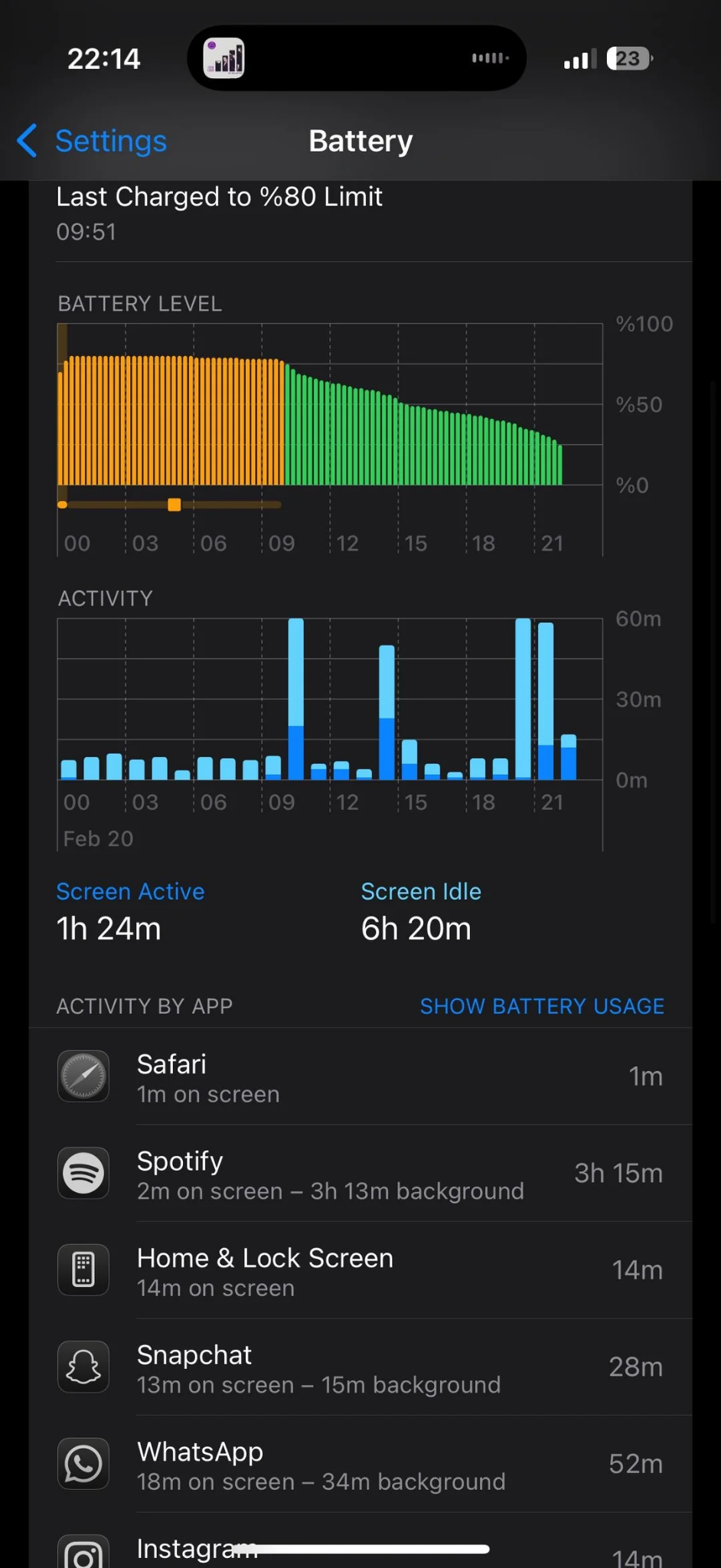 While the issue is quite significant—especially since the Pro models cost upwards of $1,000— there are a few tips that we shared below, which you can apply and possibly get around the iPhone 16 Pro’s battery draining issue. Let’s jump right into it:
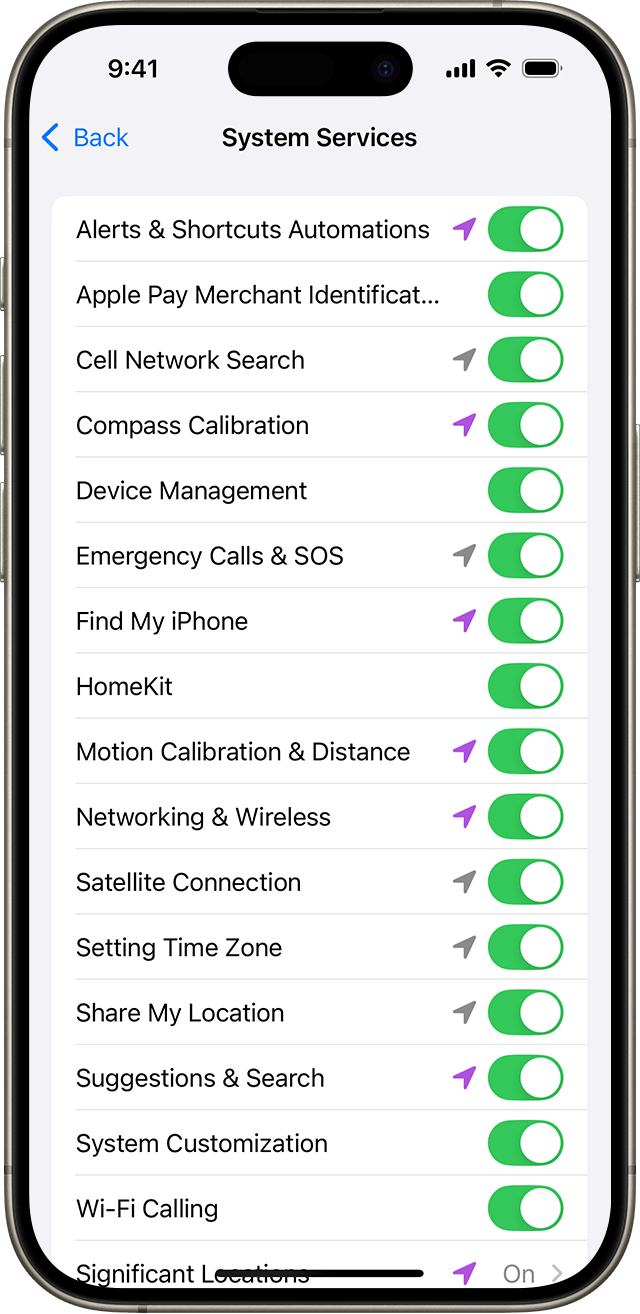
Disable System Services
- Open Settings.
- Tap on Privacy & Security.
- Select Location Services.
- Navigate to the bottom and look for System Services.
You can turn off the below options if you don’t use them:
-
- Alerts & Shortcuts Automation
- Apple Pay Merchant Identification
- Device Management
- In-App Web Browsing
- HomeKit
- Cell Network Search
- Motion Calibration & Distance
- Networking & Wireless
- Setting Time Zone
- Share My Location
- Suggestions & Search
- System Customisation
- Wi-Fi Calling
- Significant Locations
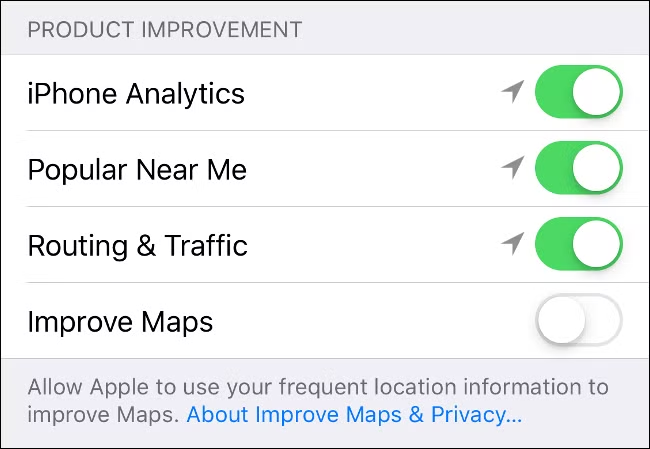
Then, under Product Improvement, disable the following:
-
- iPhone Analytics
- Popular Near Me
- Routing & Traffic
- Improve Maps
Turn off iCloud Backup
- Open Settings.
- Tap on your profile name at the top.

3. Tap on iCloud.
4. Choose iCloud Backup.
5. Turn off the toggle for Back Up This iPhone.
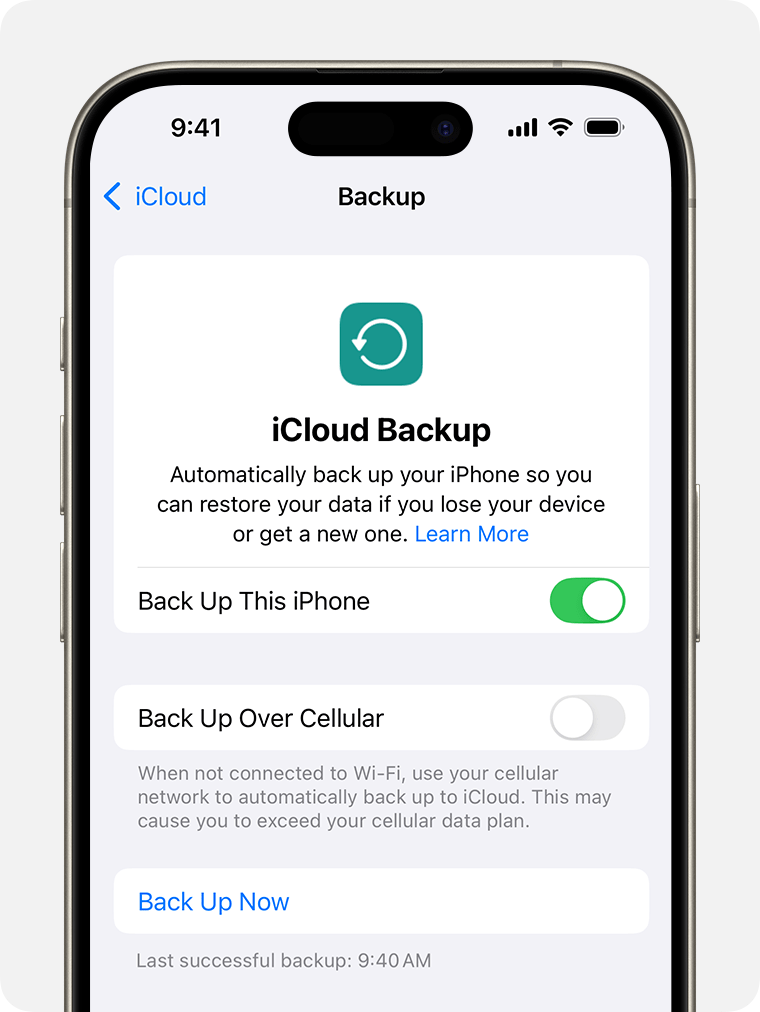
6. Select Turn off
Disable Background App Refresh
- Open Settings.
- Select General.
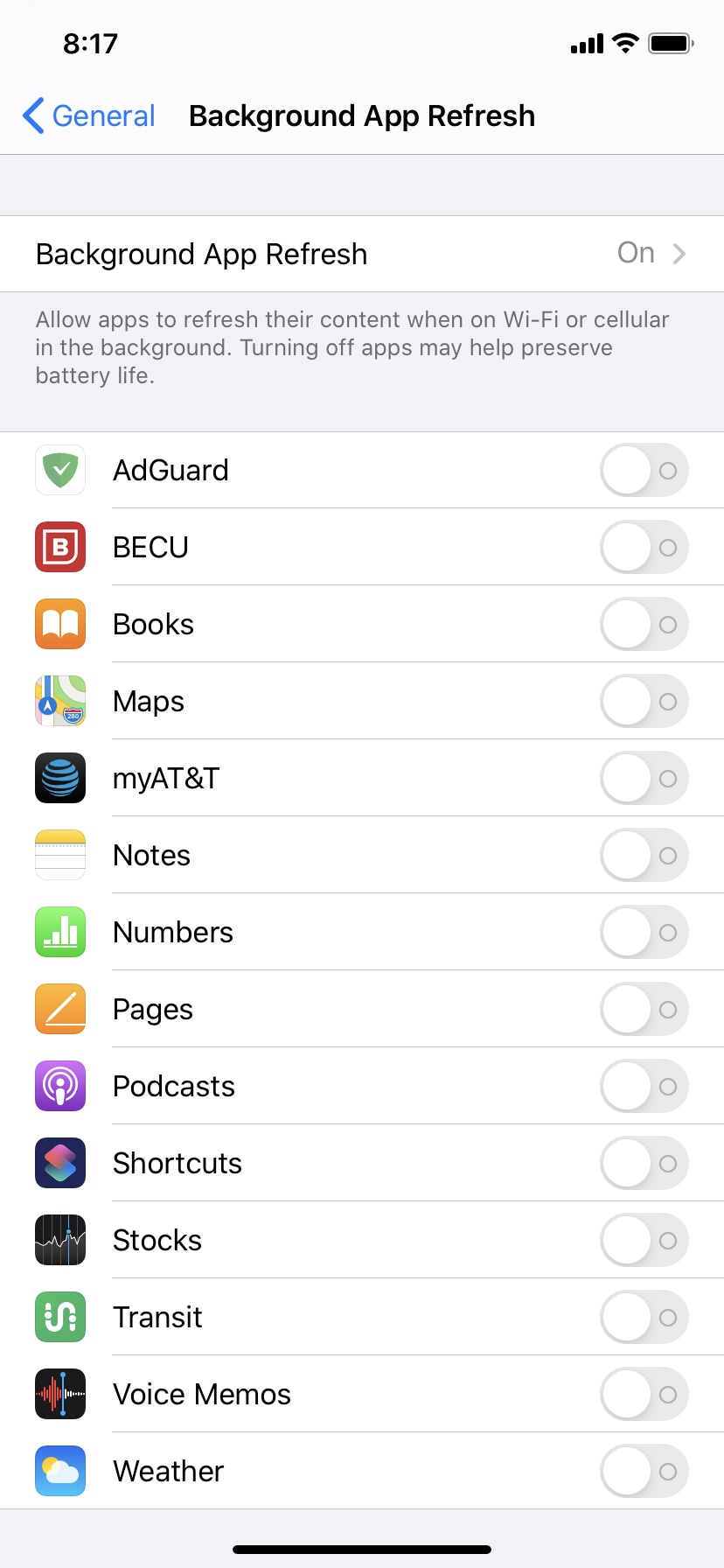
3. Tap on Background App Refresh.
4. You can either turn the option off entirely for all apps or choose specific apps.
Background App Refresh allows apps to continuously work in the background and update in real-time. Since this may not be necessary for all apps, turning it off can help conserve battery life.
Disable Apple Intelligence
- Launch Settings.
- Tap Apple Intelligence & Siri.
- Toggle off Apple Intelligence.
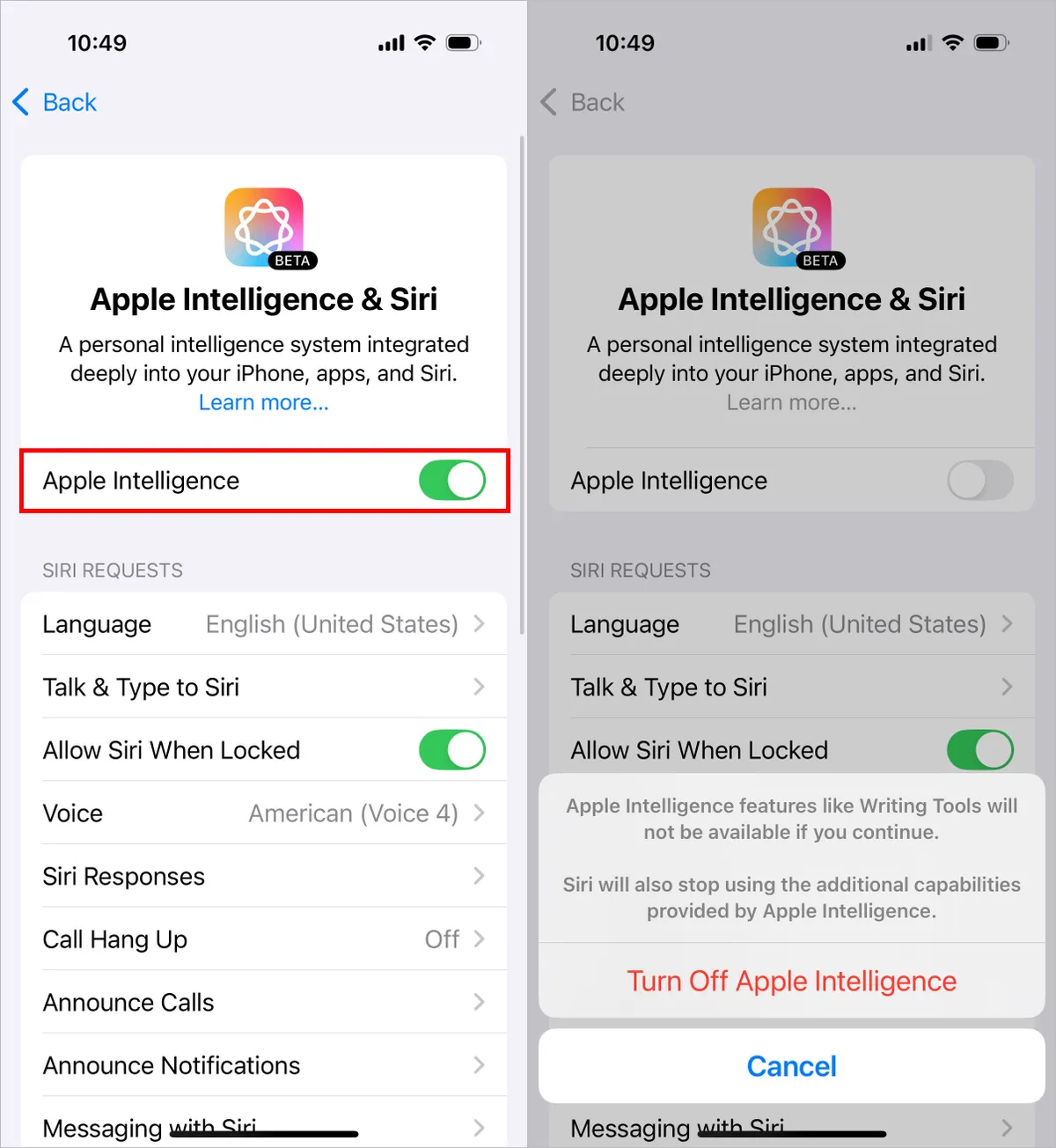
As much as you may like half-baked Apple Intelligence features, if you aren’t a fan of Apple’s take on AI, then it is probably best for you and your iPhone’s battery that you disable it. This will save you some battery.
Factory Reset your iPhone
1. Open Settings app.
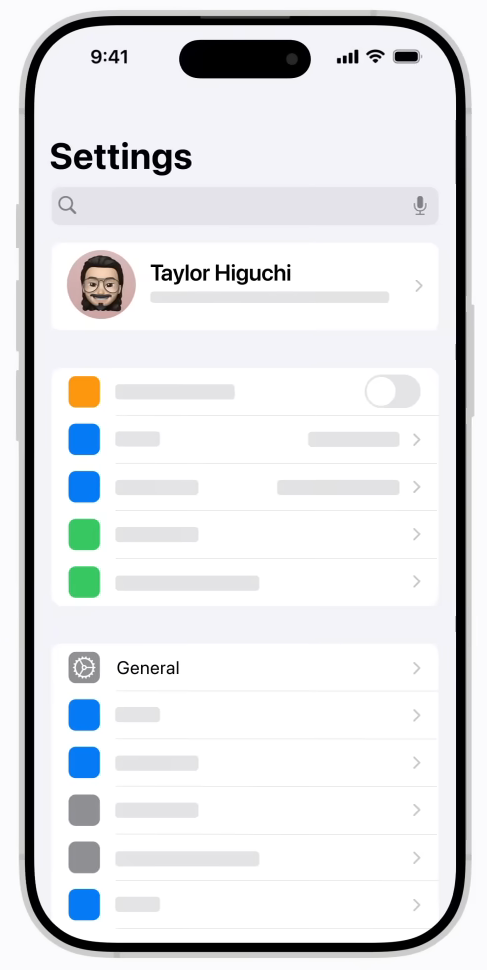
2. Select General.
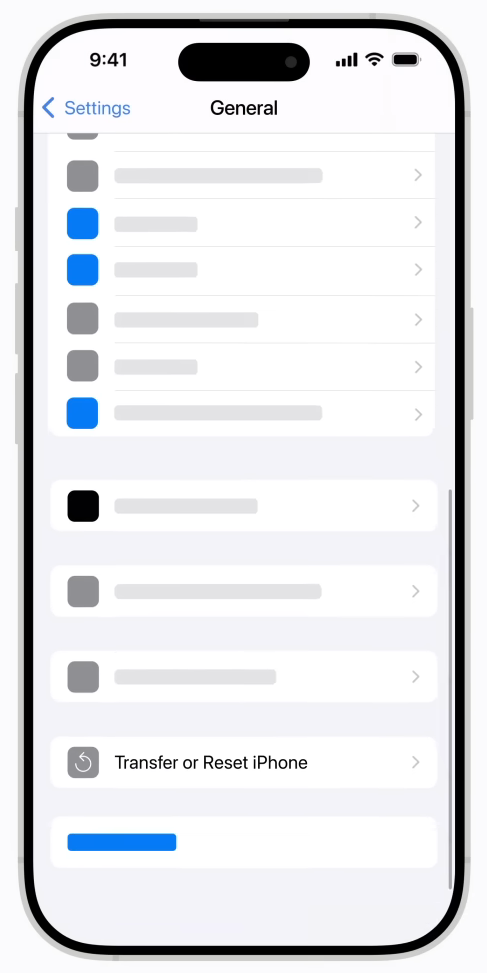
3. Tap on Transfer or Reset iPhone.
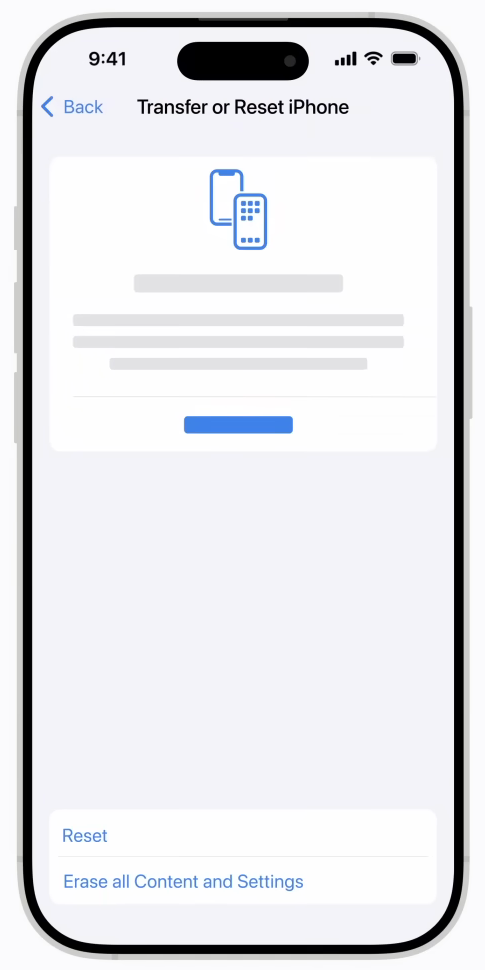
4. Choose Erase All Content and Settings.
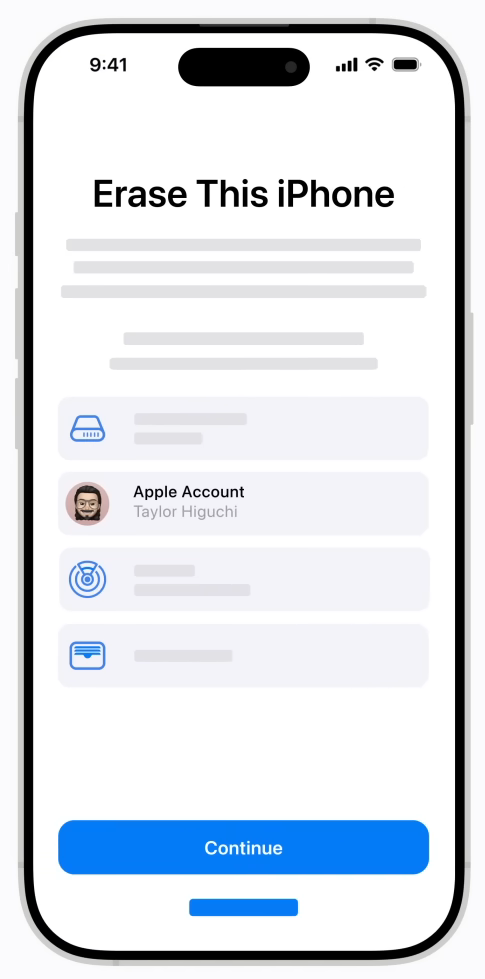
5. Select Continue.
6. Enter your Apple ID and Password.
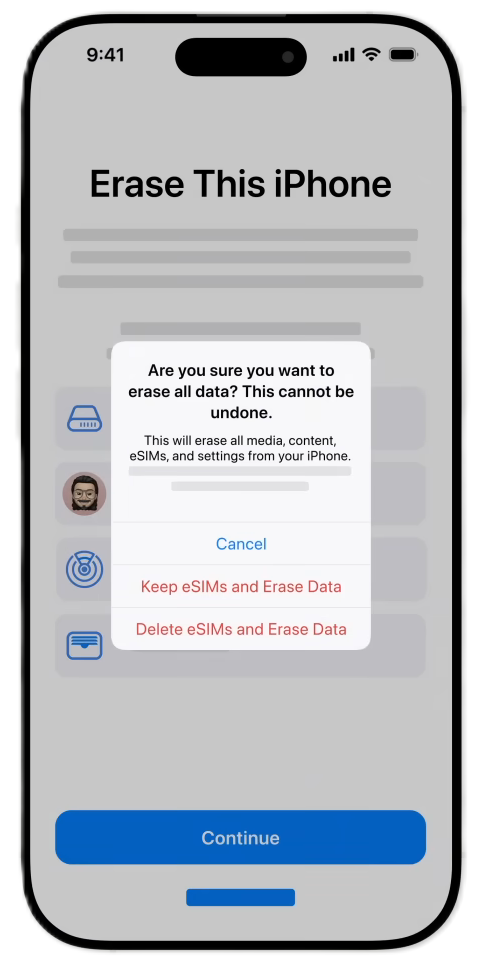
7. Choose Turn Off and reset your iPhone.
Some users have successfully fixed the iPhone 16 Pro battery draining issue by simply factory resetting their phones. Probably, this was caused because of a bug, which factory resetting resolves. You can also try the above steps and fix the issue.
Bring your iPhone over to Smashed IT

If things aren’t going your way, then let the experts handle the matter for you. There might be some issue with your iPhone’s battery, which is why we recommend you bring it over to Smashed IT:
Parnell: 137 Parnell Road, Parnell, Auckland, New Zealand
Ponsonby: 135 Ponsonby Road, Ponsonby, Auckland, New Zealand
Papakura: 2/182 Great South Road, Papakura, Auckland, New Zealand.
We have a team of experts who can help you fix your iPhone’s battery-draining issues in no time. Our team will carefully examine the issue with your iPhone, find the cause, and suggest the best possible and budget-friendly solution. You are also free to send in your queries via email at info@smashedit.co.nz, and call us at 09 281 3641.
We’ll be happy to help!